Anecdotes are not enough.
Questions about student screen time can quickly become emotional or overly broad. Without school-level context, technology teams have little evidence to explain patterns or guide a constructive conversation.
Responsible Chromebook usage visibility
Chrome Clock gives K–12 technology leaders clear Chromebook screen-time data for more informed conversations with administrators, boards, educators, and families.
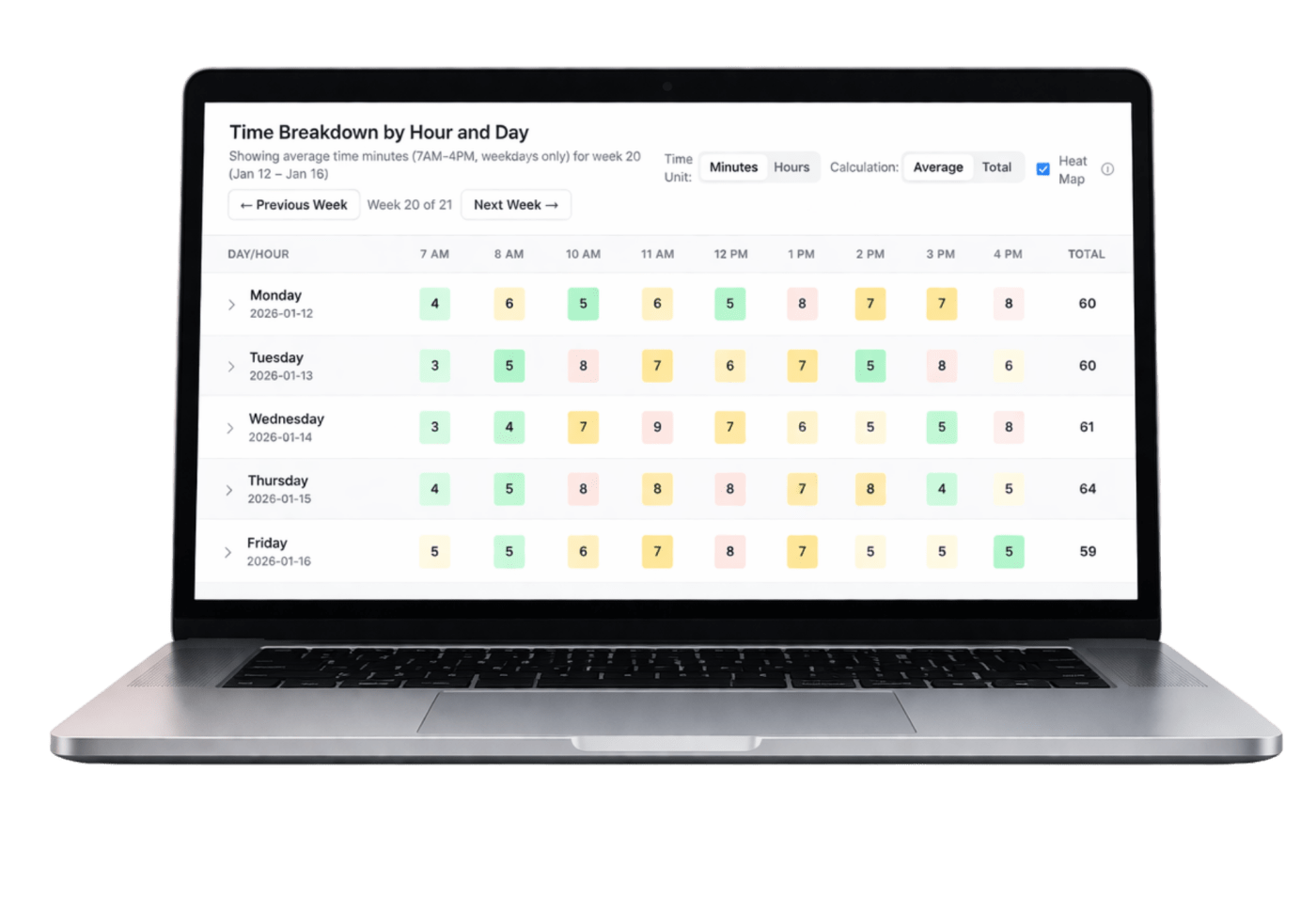
Questions about student screen time can quickly become emotional or overly broad. Without school-level context, technology teams have little evidence to explain patterns or guide a constructive conversation.
Chrome Clock turns Chromebook usage into clear averages and trends that help school leaders understand patterns, communicate transparently, and make better-informed decisions.
See it in action
See how Chrome Clock turns Chromebook usage into clear K–12 screen-time reporting for technology leaders, administrators, boards, educators, and families.
Watch on YouTubeCore capabilities
Start with the operating outcome, then use the specific capabilities your environment needs.
Understand typical Chromebook usage during the school day with clear, comparable reporting.
See how usage patterns differ across grade bands without framing the product as individual surveillance.
Give district and school leaders a more useful view of organizational patterns.
Review usage by day and hour to add context to school-day screen-time questions.
Give appropriate leaders access to the information relevant to their responsibilities.
Use alerts to draw attention to usage patterns that may need a closer look.
How it works
Common use cases
Value by role
Explain Chromebook usage with school-level evidence and a consistent source of data.
Understand usage patterns and bring context to decisions about responsible technology use.
Receive clearer answers grounded in organizational trends rather than fear or assumptions.
Security and privacy
Supported connections and data sources vary by product and use case.

“Before Chrome Clock, conversations about student screen time were based on guesswork and anecdotes, but now we have the real data needed to confidently answer questions from our parents and board. It has turned concerns into constructive, transparent community dialogues backed by concrete usage facts.”
Stephanie GriffinDirector of Instructional TechnologyPiedmont Unified School District
Frequently asked questions
No. It is positioned around school-level visibility, responsible technology leadership, and better-informed conversations using organizational trends.
Current approved capabilities include average daily screen time, grade-level trends, school-level trends, time breakdowns, role-based access, alerts, and clear reporting.
The current process begins by adding the Chrome Clock extension to managed student Chromebooks.
Role-based access helps schools provide appropriate visibility to technology and school leaders based on their responsibilities.
Start a practical conversation
Tell us what your team is trying to improve. We’ll focus the conversation on the workflows and outcomes that matter to you.